This article is based on Android Developer documentation, Apple iOS 26 technical documentation, USPTO patent filings, and verified research from Science Direct and Rokform. This is an educational explainer.
You opened an app and it had logged you out. A message arrived an hour late. Your fitness tracker missed steps you definitely took. Your alarm app didn’t ring because “battery optimization” had quietly killed it.
These aren’t bugs. They’re decisions made by a system running inside your phone that you didn’t configure, probably don’t know about, and almost certainly never agreed to. Your phone has been deciding which apps deserve power, which ones get suspended, and which ones get cut off entirely based on its own judgment about what matters to you.
Here’s how that system works, what it’s actually doing to your apps, and how to take back control.
The Bucket System: Your Apps Are Being Ranked
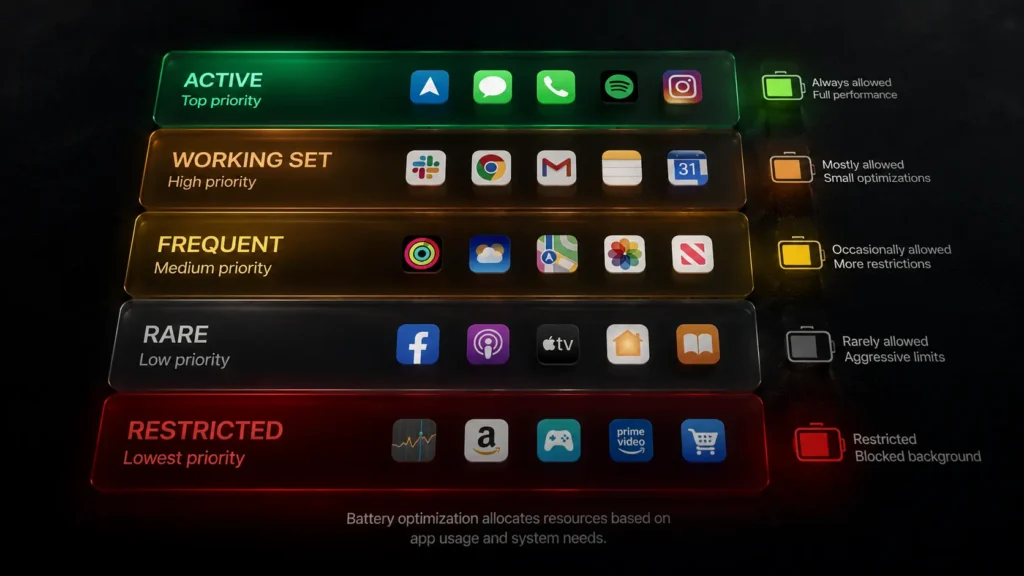
Android introduced App Standby Buckets a battery management feature that prioritizes apps’ requests for resources based on how recently and how frequently they’re used. Based on app usage patterns, each app is placed in one of five priority buckets.
Those five buckets Active, Working Set, Frequent, Rare, and Restricted determine how much CPU time, network access, and background processing each app receives. An app you open daily sits in Active or Working Set. An app you haven’t touched in weeks gets demoted to Rare or Restricted meaning it gets almost no background resources.
If the system app is not present on a device, the system defaults to sorting apps based on how recently they were used. More active apps are assigned to buckets that give them higher priority, making more system resources available.
The bucket your app sits in directly determines whether it can fetch new emails in the background, whether push notifications arrive on time, and whether it can complete background tasks like syncing your calendar or updating your location. An app in the Restricted bucket may not be able to do any of these things at all even when your battery is at 100%.

The AI Layer: Learning Without Asking
The bucket system is rule-based. The layer running on top of it in 2026 is not.
Modern smartphones use federated learning meaning your device learns from the habits of other users while keeping your data on-device. Adaptive power modes pull data from your phone’s sensors, tracking orientation, movement, and ambient light to optimize power based on context. If you’re binge-watching at home or on the move, your phone adjusts accordingly. When traveling somewhere new, your device picks up on that and kicks into conservation mode reducing brightness, limiting background tasks, and only prioritizing essentials like maps and messaging.
Many 2026 flagships pair large batteries with adaptive software that prioritizes foreground tasks and suspends unnecessary background activity. Devices with moderately sized batteries can outperform larger ones because their AI-assisted power management is more aggressive and better tuned.
The AI doesn’t ask which apps matter to you. It infers it from how often you open them, how long you spend in them, whether you engage with their notifications. An app you open every day gets protected. An app you opened twice last month gets deprioritized even if that app is something you need to work reliably in the background, like a two-factor authentication app, a health monitor, or a remote work tool.
How Apple Does It Differently
Apple’s approach is less visible than Android’s but equally consequential.
iOS 26 introduces AI battery management as one of its most significant under-the-hood feature learning your daily charging and usage patterns to optimize both battery longevity and performance allocation across apps.
Apple’s system uses on-device machine learning to predict when you’ll need specific apps and pre-allocates resources accordingly. It learns your morning routine, your commute patterns, your work hours. Apps you consistently use at 8 AM get resources allocated before you wake up. Apps you rarely use after 6 PM get deprioritized during evening hours.
The trade-off: Apple’s system is more seamless than Android’s bucket approach you’re less likely to notice an app failing silently. But you also have less visibility into what’s being deprioritized and significantly fewer manual controls to override the AI’s decisions.
The Real-World Consequences You’ve Already Experienced
The patented battery power management method allocates available battery power to applications one at a time, starting with the highest priority application. If the estimated battery duration falls below a requested duration, execution of lower-priority applications is ceased.
In practical terms: when your battery drops, the system doesn’t just dim the screen. It actively stops apps from running starting with the ones it has ranked lowest. The alarm app you downloaded three months ago, opened twice, and haven’t touched since? It’s in the Rare bucket. When your battery hits 20%, it may be among the first things suspended.
The apps most commonly hurt by battery optimization are exactly the ones users assume will always work: messaging apps on alternative platforms, health and fitness trackers, reminder and alarm apps, email clients outside the default, and home automation controllers.
How to Take Back Control
On Android:
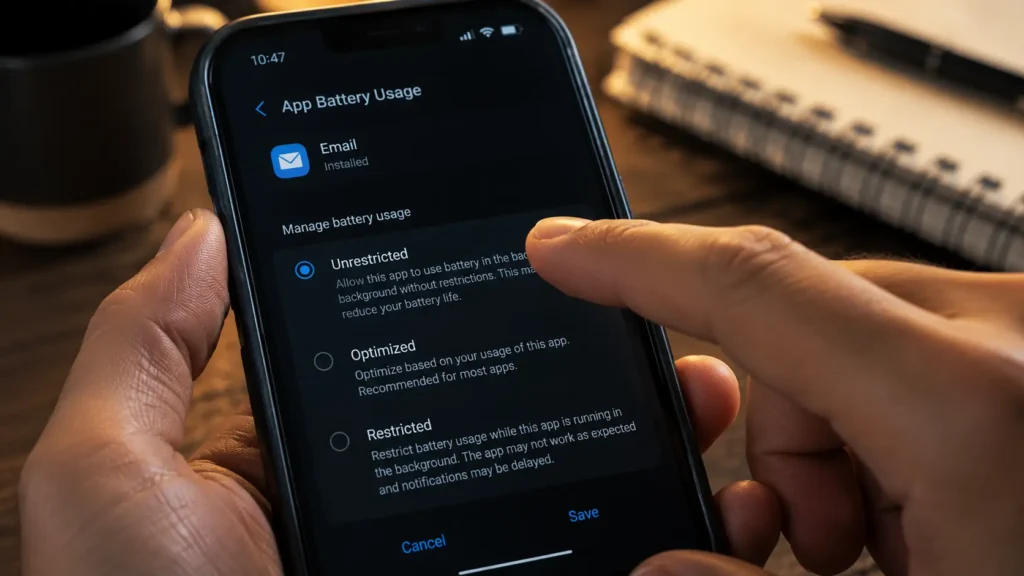
You can override the bucket system manually. Go to Settings → Apps → select the app → Battery → select “Unrestricted.” This removes the app from the standby bucket system entirely it will always have background access regardless of usage frequency.
Use this selectively unrestricting every app defeats the purpose and will visibly reduce battery life. Use it for apps that must work reliably in the background: your alarm, your two-factor authentication app, your primary messaging app, and any health monitoring tool.
On iOS:
Go to Settings → General → Background App Refresh. Enable it for specific apps rather than all apps. For critical apps, disable Low Power Mode automation under Settings → Shortcuts Low Power Mode aggressively restricts background processing for all apps simultaneously.
Check what’s actually being restricted:
Battery optimization features are enabled by default on both iOS and Android most users don’t realize their apps are being throttled until they notice a specific failure. On Android, Settings → Battery → Battery Usage shows exactly which apps are consuming resources and which are being restricted. On iOS, Settings → Battery shows usage by app but not restriction status, which is the transparency gap Apple still hasn’t closed.
Your phone’s battery system isn’t broken when an app fails silently. It’s working exactly as designed making resource decisions based on inferred priorities you never explicitly set. The fix isn’t complicated. But it requires knowing the system exists in the first place.
Now you do.
© AiwalaNews | Global Tech & Privacy Edition | May 2026
Read Also:
- 🔗 Why Your Phone Knows You’re Sad Before You Do
- 🔗 How AI Learns Your Weaknesses From Just a Few Clicks
